How to Connect Your Design System to Claude Code, Cursor, Codex and VS Code
How to connect Supernova to Claude Code, Cursor, Codex and VS Code: the commands, the scope decision that shares it with your team, and how to verify it works.
 Nezar MansourContent Writer

An agent that cannot reach your design system will invent one, and the invention usually passes review. This is how you connect the real thing.
Supernova serves your tokens, components and documentation over MCP, so the agent resolves a decision instead of guessing at it. The connection takes about a minute. One setting in the middle of it decides whether your design system reaches you or your whole team.
The walkthrough below uses Claude Code's MCP commands because they are the clearest to write down. Cursor, Codex and VS Code follow the same shape with different file paths, and there is a section covering each of them further down.
Before you start
Four things, and the second one is where people come unstuck:
- A Supernova account. Sign up free if you do not have one. MCP is included on every plan including the free tier, with unlimited lookups, so you can run this whole guide before anyone signs anything.
- A design system in that account. The server serves what is actually in Supernova. If your tokens and components still live only in Figma, import them first and come back once the system has somewhere to live.
- The right role. Supernova connects as you, so an agent can only reach what you can reach. Contributor or above if you want write access. Viewers get read-only, which is covered further down.
- Your AI tool installed and signed in. Claude Code, Cursor, Codex or VS Code with Copilot. Open a terminal in a project directory. Any directory works, including an empty one.
Where to find it in Supernova
Open the design system you want to serve. On the Overview page, MCP sits under Destinations on the right.
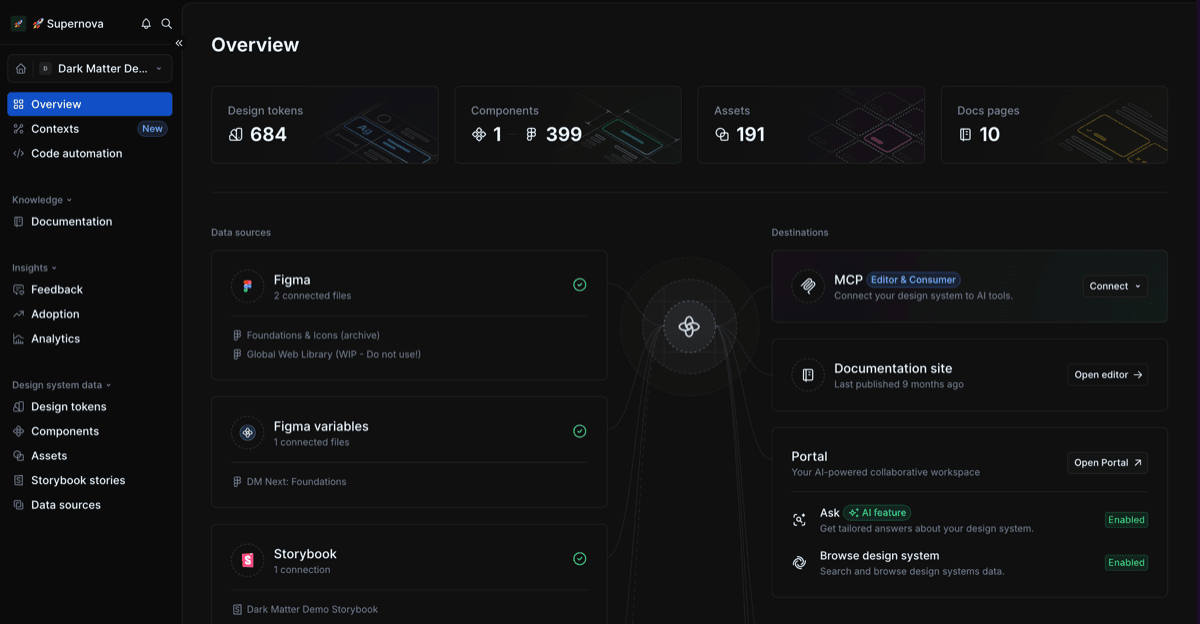
Click Connect and you get a path for each tool.
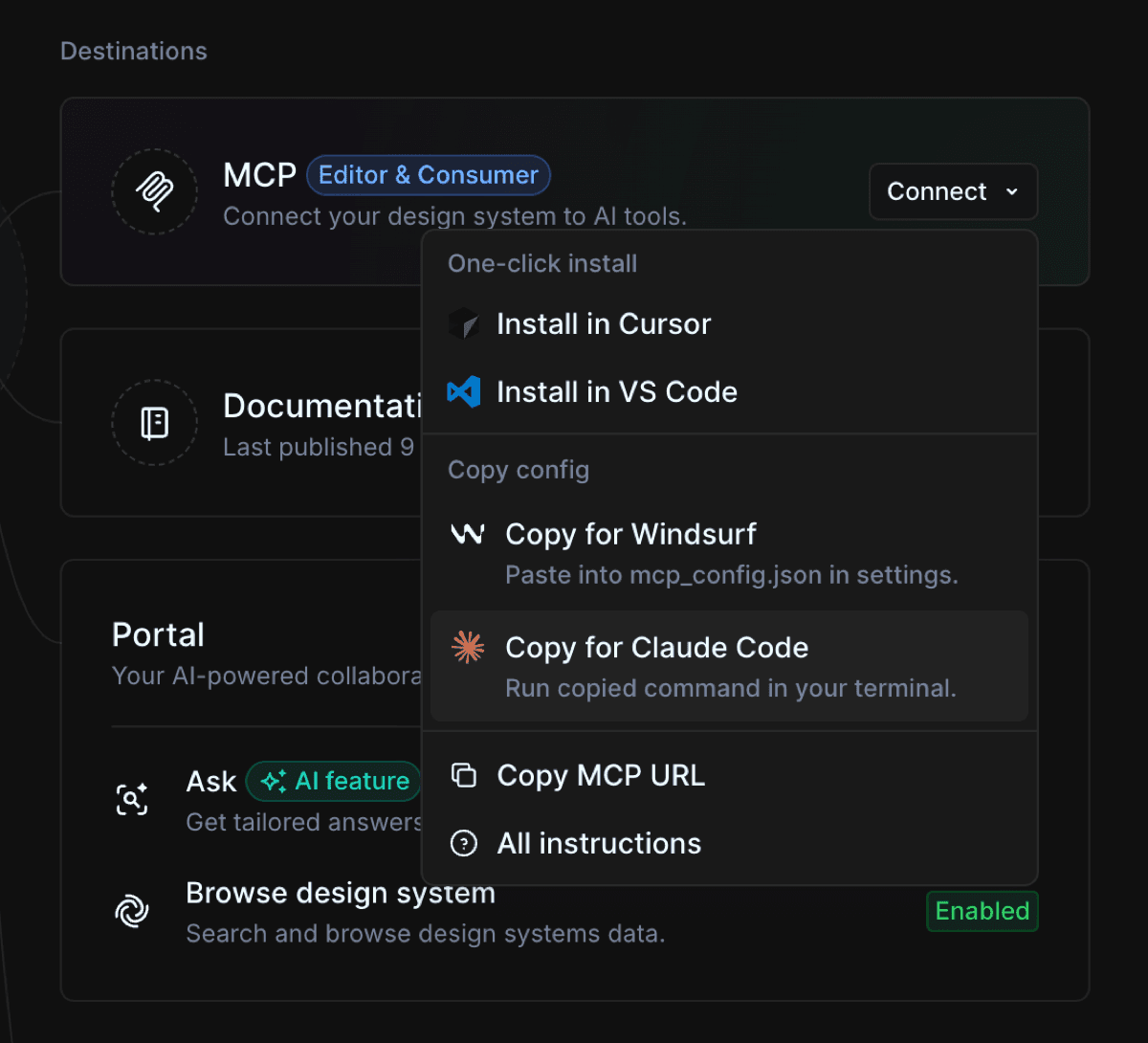
Cursor and VS Code have one-click install. For Claude Code, Copy for Claude Code puts the whole command on your clipboard to run in your terminal, and Copy MCP URL gives you just the endpoint if you would rather wire it up by hand. Whichever route you take, the endpoint is the same:
https://mcp.supernova.io/mcp
The rest of this guide writes the command out, because seeing the parts is what makes the scope decision further down make sense.
Add the server
Run this in your terminal, not inside a Claude session:
claude mcp add --transport http supernova https://mcp.supernova.io/mcp
Three parts matter:
--transport httptells Claude Code the server is hosted at a URL rather than run as a local process. Supernova's is hosted, so this is the right flag.supernovais a name you invent. It labels the server's tools in Claude's output, so pick something you will recognise.- The URL is Supernova's endpoint,
https://mcp.supernova.io/mcp. It is the same for every workspace and every design system, so there is nothing to look up.
Check it actually connected
The Added confirmation means the entry was saved, not that the server responded. Check:
claude mcp list
| Status | What it means |
|---|---|
✔ Connected | Working |
! Needs authentication | Reachable, needs sign-in. Next section |
! Connected · tools fetch failed | Connected but could not list tools. Run claude mcp get <name> for detail |
✘ Failed to connect | No response. Usually a wrong URL |
✘ Connection error | The attempt threw an error |
If you get a 404, Claude Code tells you the endpoint was not found and names the origin. Run claude mcp get supernova to see the full URL you configured and compare its path against the vendor's documented endpoint. Most 404s are a missing or extra path segment.
Sign in, and pick what you are connecting
Supernova's server sits behind authentication, because your design system is not public.
Start a session, open the MCP panel, pick the server, choose Authenticate:
/mcp
Claude Code opens a browser window so you can sign in. That window is where the decision gets made, and it is easy to click straight past it. You are picking two things: which design system, and what kind of access.
- Pick a design system and you get Editor MCP. Your agent can read the system and write back to it, so it can create pages, edit tokens and restructure components. You need to be Contributor or above.
- Pick a context and you get Consumer MCP. Read-only, scoped to whatever that context exposes. Admins who pick a context also land on Consumer MCP, which is how you check what your design system consumers actually get.
The two cannot be combined in one connection. If you want to read through a scoped context and write to the system, that is two connections.
Viewers can only pick a context. If you expected write access and did not get it, check your role before you check your config. The Editor MCP documentation has the full breakdown.
One URL covers your whole workspace, so which design system you land on is settled here rather than in the command you ran earlier.
If the browser does not open, copy the URL from the terminal and open it yourself.
The decision that matters: scope
This is the part most teams get wrong, and it is the difference between one engineer having your design system and everyone having it.
claude mcp add defaults to local scope: private to you, active only in the project you ran it from. Fine for testing, useless for a team.
| Scope | Where it lives | Who gets it |
|---|---|---|
local | ~/.claude.json, under this project | You, this project only. The default |
user | ~/.claude.json, top level | You, every project |
project | .mcp.json in the repo root | Everyone who clones the repo |
For your own machine across everything you work on:
claude mcp add --scope user --transport http supernova https://mcp.supernova.io/mcp
For the whole team:
claude mcp add --scope project --transport http supernova https://mcp.supernova.io/mcp
That writes .mcp.json to your repository root. Commit it. Every engineer who clones the repo gets prompted to approve the server, and then it connects for them too.
{
  "mcpServers": {
    "supernova": {
      "type": "http",
      "url": "https://mcp.supernova.io/mcp"
    }
  }
}
If you own a design system, read that file again. It is four lines of config, committed once, that puts your design system inside every engineer's agent. Adoption problems are usually distribution problems, and this is a distribution mechanism that costs you a pull request.
Scope is fixed when you add a server, so changing it means removing and re-adding:
claude mcp remove supernova --scope local
Check it is answering from your system
A connected server is not the same as a working one. Ask it something you already know the answer to:
Use the supernova server. What is the resolved value of our
primary button background token?
Two things to look for. The tool call in Claude's output should be labelled with your server name, which confirms the answer came from the server rather than the model's general knowledge. And the value should match what your design system actually says.
Naming the server in the prompt is only for this test. Normally Claude picks relevant tools on its own.
Then ask what it can do:
What tools does the supernova server give you?
The answer tells you the shape of the server. Tools starting with get and list are retrieval. create, update, delete and publish mean an agent can change things, which is worth knowing before you find out by accident.
Cursor, Codex and VS Code
Same server, same URL, different file. Three things differ and all three will silently break a config if you get them wrong.
| Config file | Key | Format | |
|---|---|---|---|
| Claude Code | .mcp.json (project) or ~/.claude.json (user) | mcpServers | JSON |
| Cursor | .cursor/mcp.json (project) or ~/.cursor/mcp.json (global) | mcpServers | JSON |
| VS Code | .vscode/mcp.json (workspace), or MCP: Open User Configuration | servers | JSON |
| Codex | .codex/config.toml (project) or ~/.codex/config.toml | [mcp_servers.<name>] | TOML |
Cursor uses the same shape as Claude Code, so the entry transfers directly:
{
  "mcpServers": {
    "supernova": { "url": "https://mcp.supernova.io/mcp" }
  }
}
VS Code uses servers, not mcpServers. Copying a Cursor config across without changing that key is the most common reason a VS Code server never appears:
{
  "servers": {
    "supernova": { "type": "http", "url": "https://mcp.supernova.io/mcp" }
  }
}
There is also a guided flow: MCP: Add Server from the Command Palette. VS Code asks you to trust a server the first time it starts.
Codex uses TOML rather than JSON, and the same config is shared across the ChatGPT desktop app, the Codex CLI and the IDE extension:
[mcp_servers.supernova]
url = "https://mcp.supernova.io/mcp"
Sign in with codex mcp login supernova.
Everything else in this guide still applies. Project-scoped config committed to the repo works the same way in all four, and it is still the setting worth changing.
Do not connect everything
Anthropic's own documentation is direct about the cost:
"Each connected server takes some space in Claude's context window because its tool names and server instructions load into every session."
Every server you add competes for the same budget as the work. Connecting Figma, Storybook, your design system platform, Linear, Sentry and a database means six sets of tool definitions loading before you have typed anything.
Connect what the project needs. Remove what it does not:
claude mcp remove <name>
When it breaks
| Symptom | Usual cause |
|---|---|
| No MCP servers configured | You added at local scope from a different project. Re-add with --scope user |
| Failed to connect | Wrong URL. claude mcp get <name> shows what you configured |
| Needs authentication, and stays that way | Run /mcp, select the server, Authenticate again |
| Connected but no tools | Server started without a required credential |
Changes to .mcp.json ignored | Claude Code reads it at session start. Restart |
For HTTP servers, a quick reachability check from your own machine:
curl -I https://mcp.supernova.io/mcp
A 404 or 405 means the server is up, since the endpoint only answers POST. A 401 or 403 means it is up and you need to authenticate. No response means the URL or your network.
The setup you actually want
One line in .mcp.json, committed to the repo, so your design system arrives with the codebase.
Supernova's MCP server needs no plugin and no repo pull. The skills that teach an agent how to work with your design system are bundled into the server itself and listed as resources when something connects, so an agent that connects already knows how to use it.
Give your agents a system worth following
See how Supernova documents, syncs, and serves your system in one place.